Showing posts with label Windows. Show all posts

Saturday, December 10, 2016

Installing a Wildcard SSL Certificate to IIS

If you ever have the need to install a Wildcard SSL Certificate, you may encounter a problem whereby the SSL Certificate is generated with a particular CSR (Certificate Request), but other servers will inevitably generate different CSRs (Certificate Requests)!

Therefore, how do you install the same Wildcard SSL certificate to MULTIPLE SERVERS?

Well, in this case, you need to EXPORT the SSL Certificate as a .pfx file and then subsequently import the SSL certificate on subsequent servers in order to be able to utilize it without re-generating separate certificate requests.

You can find instructions for backing up/exporting to a .pfx file and then subsequently importing the .pfx file here: https://www.digicert.com/ssl-support/pfx-import-export-iis-8.htm

Easily sharing screenshots for FREE!

I was just working with a support representative and they introduced me to a very neat FREE website for sharing screenshots with others: https://snag.gy/

The instructions for Windows are pretty simple!


  1. Click on the window you want to capture
  2. Press Alt + Print Screen
  3. Click back on this webpage
  4. Press Ctrl + V to upload the image

After uploading the image, you will get a unique Url that you can share with friends or colleagues in order to provide information about your system.  It is especially useful for troubleshooting computer issues or communicating with technical support!


Monday, July 18, 2016

Pinging an IPv4 Network Address

Now that most Windows machines have IPv6 installed by default, I have noticed that when you do a ping of a machine, you will get the IPv6 address instead of the IPv4 address!!

Well, I still prefer reading and remembering the IPv4 addresses, so I wanted to find out how to get the IPv4 address instead when I performed a ping.

Thankfully, it was rather easy to accomplish as follows:

ping MYSERVER -4

That was all that was needed to return the IPv4 address!

If I still want to get the IPv6 address, I can get it by just changing the command to this instead:

ping MYSERVER -6

How simple is that??

Tuesday, June 28, 2016

Run Visual Studio as Administrator by default

If you work with Visual Studio and your local IIS instance, you may soon discover that you are unable to load any projects in your solution that are bound to your local IIS instance!

This is because Visual Studio is set to default to using IIS Express which requires lower privileges than projects bound to your local IIS instance.

In order to resolve this problem, you simply need to right-click on your Visual Studio icon and select "Run as administrator" each time before you launch the application.

However, if you use Visual Studio every day, you can see how performing this operation over and over again can be tedious and annoying.

But if you know this handy tip, you can launch Visual Studio with Administrative privileges by default each time!

For this example, I am using Visual Studio 2015, but this can be equally applied to any older version of Visual Studio such as Visual Studio 2013 as well:


  1. Since this operation cannot be performed from the Metro Windows Start menu in Windows 8.1, I would suggest that you pin your Visual Studio icon to the Taskbar.
  2. Now, right click on the pinned Visual Studio icon to launch the popup context menu.
  3. From the popup context menu, select "Visual Studio 2015" (or the name of any earlier instance of Visual Studio)
  4. Right-click once again on the name of "Visual Studio 2015" to get yet another popup context menu
  5. Now, select "Properties" from that subsequent popup context menu
  6. From the new dialog that displays, make sure the "Shortcut" tab is selected and click on the "Advanced..." button
  7. On that screen, you will see an option to select a checkbox for "Run as administrator"
  8. Select that checkbox and click OK
  9. Click OK one more time to close out of the Shortcut dialog
  10. Now when you launch Visual Studio, it will launch under Administrative privileges by default!


Friday, March 4, 2016

An error occurred while Windows was synchronizing with time.windows.com

I recently noticed that one of my Windows machines was out of sync with the actual time, so, naturally I decided to try and go to sync up my time with the Internet time when I suddenly encountered this error message:


Fortunately, Microsoft provides multiple time servers as an alternative to "time.windows.com":


So, I decided to switch to one of the other Internet time servers such as "time.nist.gov":


As you can tell from the screenshot above, that did the trick!


Wednesday, February 24, 2016

Tail for Windows

If you ever need to monitor a log file for output, you may be looking for tools such as Tail for the Windows platform.

Fortunately, there is an abundance of Tail utilities for Windows!

Here are just a few of them:


  1. WinTail: http://www.baremetalsoft.com/wintail/
  2. BareTail: http://www.baremetalsoft.com/baretail/index.php
  3. BareTail Pro: http://www.baremetalsoft.com/baretailpro/index.php
  4. Tail for Win32: http://tailforwin32.sourceforge.net/
  5. SnakeTail: http://snakenest.com/snaketail/
  6. tail for Windows: http://www.trisunsoft.com/tail-for-windows.htm
  7. mTail: http://ophilipp.free.fr/op_tail.htm


Wednesday, February 10, 2016

Where is gacutil.exe?

If you are looking for gacutil.exe, you may have noticed that it no longer ships natively with the .NET Framework and instead ships separately with the Microsoft Windows SDK.

Depending on what OS you are running will determine what version of the Microsoft Windows SDK you will want to install, but for this example, I will use the Microsoft Windows SDK for Windows 7 and .NET Framework 4: https://www.microsoft.com/en-us/download/details.aspx?id=8279

One of the confusing things about this version of the Microsoft Windows SDK is that it ships with 2 versions of gacutil:

  • gacutil.exe for .NET Framework v. 3.5
  • gacutil.exe for .NET Framework v. 4.0
If you use the default location for gacutil.exe, you will be using the .NET Framework v. 3.5 version:

  • C:\Program Files\Microsoft SDKs\Windows\v7.1\Bin\gacutil.exe
  • C:\Program Files\Microsoft SDKs\Windows\v7.1\Bin\x64\gacutil.exe 

However, the location of gacutil.exe for .NET Framework v. 4.0 is located here:

  • C:\Program Files\Microsoft SDKs\Windows\v7.1\Bin\NETFX 4.0 Tools\gacutil.exe
  • C:\Program Files\Microsoft SDKs\Windows\v7.1\Bin\NETFX 4.0 Tools\x64\gacutil.exe
Therefore, if you are targeting .NET Assemblies for .NET 3.5 and .NET 2.0, then you will want to use the older version of gacutil.exe, but if you are targeting .NET Assemblies for .NET 4.0 and .NET 4.5, then you will instead want to use the newer version of gacutil.exe to target these assemblies.

If you accidentally use an older version of gacutil.exe against a newer .NET assembly (ex. gacutil.exe for .NET 3.5 against a .NET 4.0/4.5 assembly), you will encounter the following error message:

"Failure adding assembly to the cache:  This assembly is built by a runtime newer than the currently loaded runtime and cannot be loaded."

If you are interested in the other Windows SDKs, you can check them out here:

Thursday, January 7, 2016

Configuring a fresh/clean Windows Server for software installations

I frequently have to work on setting up Windows Server for either installation or development purposes, so I usually have to repeat a common set of steps over and over on all of the servers that I set up.  When I set up and configure my own servers or virtual machines, I have all of this scripted and imaged so that I can set up my environments within a matter of minutes, but I usually have to repeat these same steps on environments built by other companies/network administrators, so I do not always have the luxury of using my own set of images as a base configuration.

Therefore, I usually have to perform many of these steps manually.

Here are the common steps that I follow when setting up any Windows server environment for my development and installation purposes:


  1. If the server is an older server such as Windows Server 2008 R2, I will usually have to install .NET Framework v. 4.5.2 and Windows PowerShell v. 4.0
  2. In many cases, I have to go in and turn off Internet Explorer Enhanced Security so that I can download any additional software that I need.
  3. I usually need to test and verify connectivity to other servers, so I will usually install the Windows Server Feature for Telnet Client.
  4. I then proceed to install my most commonly used alternative browsers such as Google Chrome 64-bit and Mozilla Firefox 64-bit.
  5. On some Microsoft sites, I have problems downloading their software due to restrictions in providing a mix of secure and insecure content on Google Chrome and Mozilla Firefox, so I install Opera browser as my backup in the event that one of these other browsers cannot download some Microsoft-specific content.
  6. I go into Windows Firewall and open any ports or allow any programs that I will need to use for my installation and development purposes such as for FTP, SMTP, SQL Server, Oracle etc.
  7. I run PowerShell an initial time to make sure that the ExecutionPolicy is set to either RemoteSigned or Unrestricted (Set-ExecutionPolicy -ExecutionPolicy RemoteSigned)
  8. I use the PowerShell ISE frequently, so I usually pin an instance of PowerShell ISE to my Windows Taskbar.  I also configure the PowerShell ISE properties to "Run as Administrator" by default.
  9. I usually use the Command Prompt very frequently as well, so I end up pinning that to the Windows Taskbar also and configure the properties to "Run as Administrator" just as I do with the PowerShell ISE.
  10. I like to have a backup PowerShell IDE available for my development other than PowerShell ISE, so I will also install Idera PowerShell Plus, pin it to my Windows Taskbar and set it to "Run as Administrator".  
  11. In the event I may have to install software from an ISO image, I usually install ISO mounting software such as Elaborate Bytes Virtual CloneDrive.
  12. More often than not, I also require an FTP client at some point in time, so I will usually install the FileZilla 64-bit FTP client.
  13. When I am doing some sort of installation or development, chances are that I will need to perform some types of file or folder comparisons at some point in time, so I will usually install a file comparison utility such as Scooter Software's Beyond Compare or Sourcegear's DiffMerge.
  14. Most instances of servers that I set up require either SQL Server or tools to manage SQL Server, so I will also usually install SQL Server Management Studio (at a minimum).  
  15. Most Windows servers I set up end being ASP.NET Web Servers, so I run a PowerShell script to install IIS and its associated features for ASP.NET.
  16. I am usually very dissatisfied with using Notepad as my text editor of choice, so I will also frequently install Notepad++.
Once I have all that in place, I am ready to begin my Windows server installations!

Thursday, December 17, 2015

Installing Windows PowerShell v. 4.0 on Windows Server 2008 R2

I recently had to install PowerShell v. 4.0 (https://www.microsoft.com/en-us/download/details.aspx?id=40855) on a Windows Server 2008 R2 server and I noticed that after installing PowerShell v. 4.0, running $PSVersionTable still only showed v. 2.0!

Well, I did a bit of digging through PowerShell articles and came across this insightful article: http://social.technet.microsoft.com/wiki/contents/articles/21016.how-to-install-windows-powershell-4-0.aspx

It provided this very useful information:

Scenario: Installing WMF 4.0 on a computer that is not running .NET Framework 4.5 will report that the installation is successful, but the components of WMF 4.0 (such as Windows PowerShell, WMI, etc.) will not be updated.
Solution: Install .NET Framework 4.5, and then run the WMF 4.0 installer again.

It also pointed to this article: http://blogs.msdn.com/b/powershell/archive/2013/10/29/wmf-4-0-known-issue-partial-installation-without-net-framework-4-5.aspx 

As it turned out, .NET Framework v. 4.5 was not installed on this server, and therefore I needed to install .NET Framework v. 4.5 BEFORE installing PowerShell v. 4.0!!

After I did this, my PowerShell version correctly displayed v 4.0!


Wednesday, December 16, 2015

Firefox 64-bit for Windows finally available!!

The Mozilla Foundation has FINALLY released a 64-bit version of their Mozilla Firefox browser!!

You can read more about the Firefox 64-bit release here: https://blog.mozilla.org/futurereleases/2015/12/15/firefox-64-bit-for-windows-available/

Lastly, you can download the 64-bit version from here: https://www.mozilla.org/en-US/firefox/all/

Woo hoo!

IP and Network Scanner for Windows

I was recently helping a friend determine the devices on his network when we discovered that his router was so old that it did not list out the attached devices on the network!

Therefore, I decided to start searching for networking tools that would list out all of the devices on the network and came across Advanced IP Scanner: http://www.advanced-ip-scanner.com/index2.php

It allowed me to easily scan all of the devices on the network and not only list out the names of the devices and their respective IP addresses, but also the manufacturer of many of the devices such as Samsung, Apple, Lite-On etc.!

It was a very handy tool to do network discovery and I would recommend it to anyone that may find themselves in a similar situation with no easy way to determine the network devices directly from the router.

Tuesday, December 8, 2015

Does destination specify a file name or directory name on the target while using XCopy

I was recently setting up some build steps to use XCopy when I suddenly encountered the following error message:

Does destination specify a file name or directory name on the target (F = file, D = directory)? 

Well, there was a lot of confusion about how to solve this issue even after reading this TechNet article: https://technet.microsoft.com/en-us/library/bb491035.aspx 

While the TechNet article advises using the /i switch, that will not work when you are dealing with just a single file.

Therefore, the better approach is to simply modify your XCopy command to use the following instead:

xcopy C:\SrcDir\SrcFile.txt  C:\DestDir\* /Y

This will allow you to avoid getting the File or Directory prompt and allow you to run your scripts unattended!

Wednesday, November 25, 2015

Installing Windows Features dynamically using PowerShell

I recently had to install a set of Windows IIS features on a Windows Server 2008 R2 box, when I was suddenly faced with this error message:

"The all option is not recognized in this context."

I had been using this article for DISM to execute my commands in the past on Windows Server 2012 and Windows Server 2012 R2: https://technet.microsoft.com/en-us/library/hh824822.aspx 

Even though the article says that it applies to Windows Server 2008 R2, according to the error message, this does not appear to work!

Therefore, I decided to write my own custom PowerShell script that would allow me to "dynamically" install Windows Features without manually having to re-write my existing Windows Feature command for different platforms.

This is finally what I came up with:

$IISFeatures = @("NetFx3", "IIS-ASPNET", "IIS-NetFxExtensibility", "IIS-ApplicationDevelopment","IIS-WebServer", "IIS-WebServerRole", "IIS-DefaultDocument", "IIS-CommonHttpFeatures", "IIS-ISAPIFilter", "IIS-ISAPIExtensions", "IIS-NetFxExtensibility", "IIS-RequestFiltering", "IIS-Security")
 
$IISFeatureNames = New-Object System.Collections.ArrayList
 
 
Clear-Host
 
foreach ($feature in $IISFeatures)
{
    $FeatureName = "/FeatureName:" + $feature
    Write-Host $FeatureName
    $IISFeatureNames.Add($FeatureName)
}
 
 
#Dynamically enable the list of features
& DISM /Online /Enable-Feature $IISFeatureNames

When I want to add or install a new Windows Feature, I simply add the name of the Windows Feature to the $IISFeatures array.

You can get a list of available Windows Features by running this command:

dism /online /get-features | more

Thursday, November 12, 2015

Where is MakeCert.exe?


If you are using Windows 8.1 or Windows Server 2012 R2 with the Windows 8.1 SDK, you can find makecert.exe here instead:

C:\Program Files (x86)\Windows Kits\8.1\bin\x86\makecert.exe

There is also a 64-bit version available here:

C:\Program Files (x86)\Windows Kits\8.1\bin\x64\makecert.exe

For guidance on using makecert.exe, you can check out these articles:


https://msdn.microsoft.com/en-us/library/bfsktky3%28v=vs.110%29.aspx

 https://msdn.microsoft.com/en-us/library/windows/desktop/aa386968%28v=vs.85%29.aspx

https://redmondmag.com/articles/2015/01/16/create-a-self-signed-certificate.aspx

http://blogs.msdn.com/b/winsdk/archive/2009/11/13/steps-to-sign-a-file-using-signtool-exe.aspx


Wednesday, November 11, 2015

Where is SignTool.exe?

If you are looking for SignTool.exe and you are running Windows 7 or Windows Server 2008 R2 with the Windows 7 SDK, you can find SignTool.exe here:

C:\Program Files (x86)\Microsoft SDKs\Windows\v7.1A\bin\signtool.exe

If you are using Windows 8.1 or Windows Server 2012 R2 with the Windows 8.1 SDK, you can find SignTool.exe here instead:

C:\Program Files (x86)\Windows Kits\8.1\bin\x86\signtool.exe

This article also provides excellent screenshots of where to find SignTool.exe: revolution.screenstepslive.com/s/revolution/m/10695/l/112948-installing-signtool-exe

Code signing an executable or installation package

If you want to sign your installation packages on Windows, you will need the tool called SignTool that ships with the Windows SDK.

You can find more information about how to use SignTool here:

https://msdn.microsoft.com/en-us/library/windows/desktop/aa387764%28v=vs.85%29.aspx

https://msdn.microsoft.com/en-us/library/8s9b9yaz%28v=vs.110%29.aspx

This article has some good examples on using SignTool to sign a file: https://msdn.microsoft.com/en-us/library/windows/desktop/aa388170%28v=vs.85%29.aspx

If you want to learn how to generate your own Code Signing Certificate using makecert.exe, you should definitely check out this article: http://blogs.msdn.com/b/winsdk/archive/2009/11/13/steps-to-sign-a-file-using-signtool-exe.aspx

Discovering Windows file locks

If you ever encounter an issue whereby Windows informs you that a file or folder is locked, you may be wondering how to detect what applications or processes are holding that file lock!

Fortunately, there are several tools that allow you to accomplish just that!

One of the tools that I have used frequently in the past is Unlocker: http://emptyloop.com/unlocker/

However, in recent months it seems that in recent months it has been labeled as an "Unsafe site", therefore, you may not even find this website in Google search results.

 Lucky for us, there is another company which produces a similar product called LockHunter which provides much of the same functionality and still displays in Google search results: http://lockhunter.com/index.htm

Using one of these tools you can easily discover the source of the file or folder lock and either unlock the process or even delete the file or folder directly from within the tool!

How cool is that??


Friday, August 28, 2015

Discontinuing support for browsers older than Internet Explorer 11

Based on this Microsoft post, browsers older than IE 11 on Windows 7 and later OSes will be discontinued after January 12, 2016: http://blogs.msdn.com/b/ie/archive/2014/08/07/stay-up-to-date-with-internet-explorer.aspx?utm_medium=email&utm_source=eloqua&utm_campaign=dt-ajax-lightweight&elq_n=DT_Ajax%20Lightweight-Email_Q3.Email%201

Windows 8.1 and Windows 10 already ship with Microsoft Internet Explorer 11, so there will be no need to upgrade.

This virtual machine appears to be in use

If you have ever worked with VMWare Workstation and had your Host Windows OS freeze/lock up or crash, you may encounter the following error message:


If you attempt to Take Ownership, you may get the following error message:


Eventually you will discover that you are in an infinite loop that prevents you from ever launching the virtual machine.

So what do you do??

Fortunately, the solution is EXTREMELY SIMPLE!!

On the file system for the virtual machine, you will find a file that ends in the extension: vmx.lck


Once you delete this file from your file system, you will be able to once again launch your virtual machine!!


Tuesday, August 18, 2015

Configuring IIS Logging

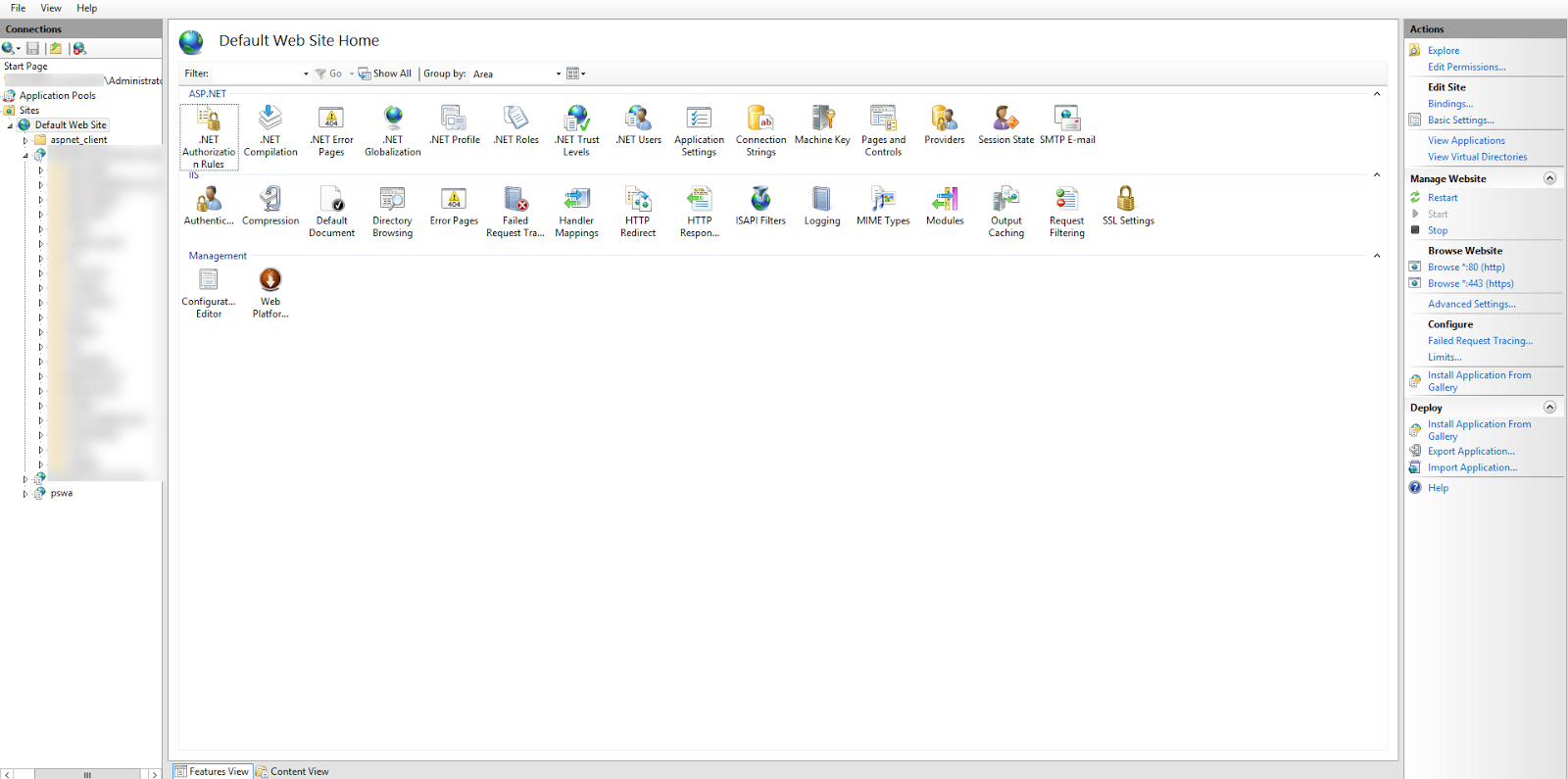
If you have ever wanted to try and track down a difficult IIS-related problem, then you will definitely want to leverage IIS Logging.

You can set up IIS Logging rather easily by following these steps:

  1. Open up IIS Manager
  2. Select a website you wish to configure for Logging
  3. On the Features view tab, click on the Logging icon
  4. Specify a location and time interval for the log files
  5. Click on Apply to begin logging your IIS requests
  6. That is all there is to it to begin logging all of your IIS activity that you can later analyze for troubleshooting and diagnostics!